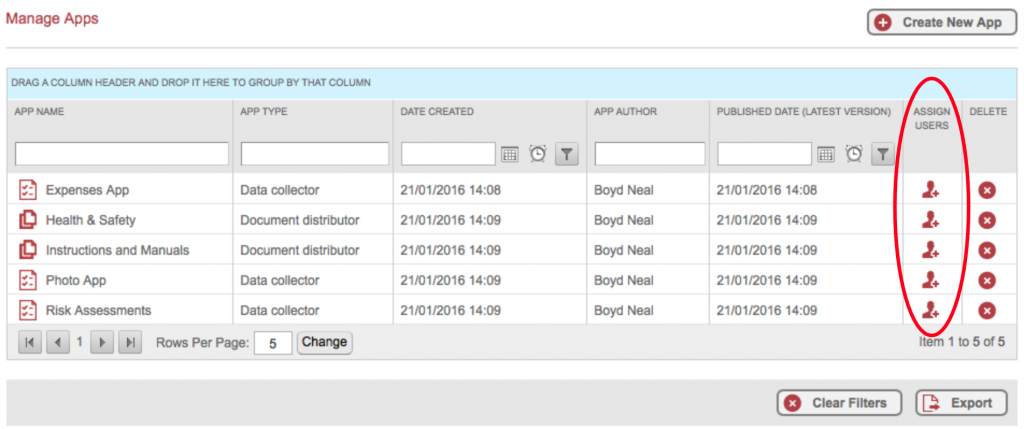
To assign or unassign users from an app, click the icon next to the required app in the ‘Assign Users’ column. This will popup a grid with the list of users.
A popup grid will appear, showing a list of available users. In the ‘Assign Users’ column, check to assign users, or uncheck to unassign users for the app. You can also use the ‘Check All’ option to apply the app to all users.
Multiple App Assignment
‘Multiple App Assignment’ adds functionality to assign multiple apps to a user from the ‘Apps’ grid (subject to having permissions to assign apps to users).
Click on the dual head icon in the ‘Assign Apps’ header.
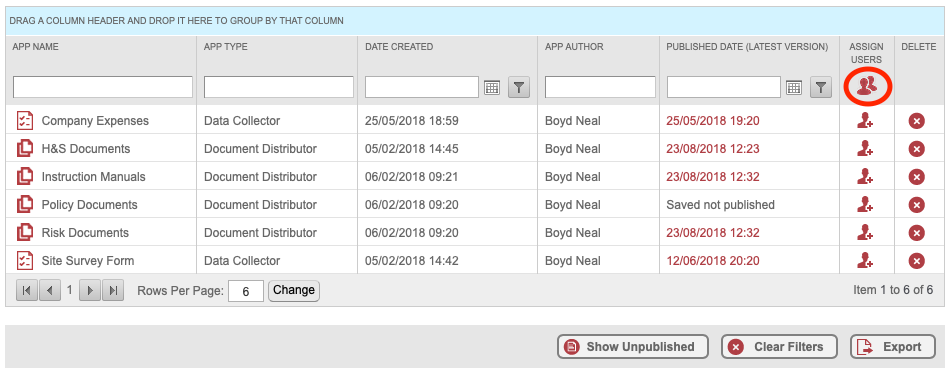
You will then be shown a list of available users. Within the grid, you can apply filters to show only a subset of users.
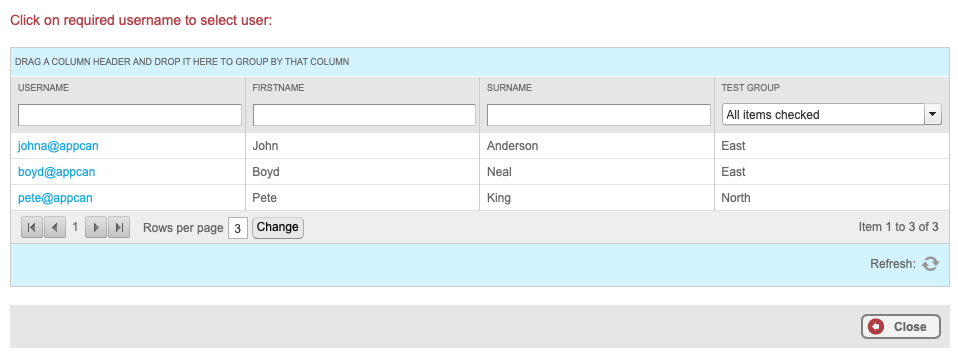
Select the required user under the ‘Username’ column by clicking on the blue username.
This will then show you a list of available apps, which you can then assign to the user. Please note: You will only be able to assign apps you have permission to see.
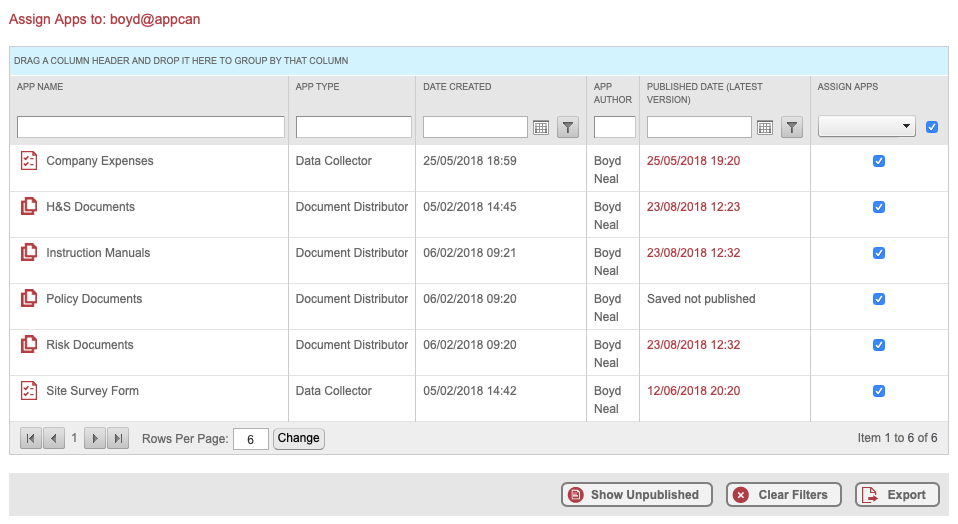
After assigning or unassigning apps(s) from the user, on close of this screen, you are returned to the list of available users.