
AppCan Cloud 2.3.0 and AppCan Mobile build 616 (version 2.21.15) introduce expanded Document Distributor management tools, document signing via Data Collector, and two Data Collector builder enhancements.
AppCan Mobile build 616 is coming soon.
Document Distributor
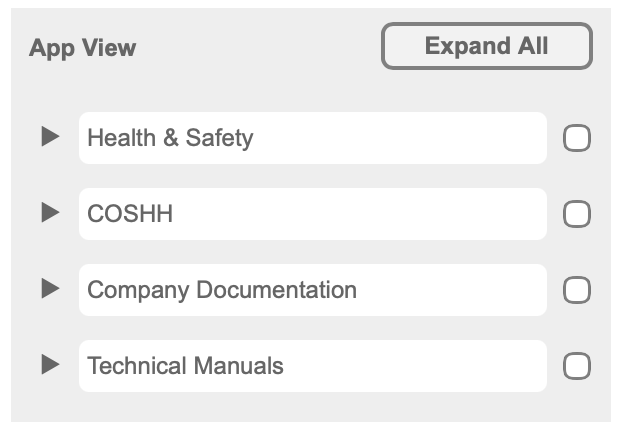
App View — Expand / Collapse Folders
The App View panel now supports expanding and collapsing folders. Click the chevron to the left of a folder or sub-folder name to toggle it. When expanded, the documents inside the folder are shown. When collapsed, they are hidden.
An Expand All button appears at the top of the App View section. Clicking it expands every folder at once. Once all folders are expanded, the button changes to Collapse All.
Bulk Update Valid Dates
Each document in the App View now has a checkbox. Selecting one or more checkboxes reveals the Bulk Update panel, which allows you to update the Valid From and/or Valid To dates for all selected documents in a single action.
To select all documents within a folder at once, tick the checkbox to the right of the folder name.
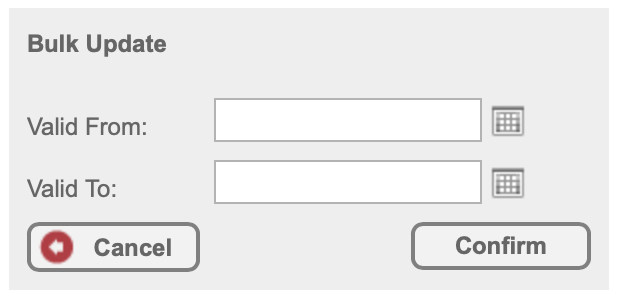
How partial updates work:
- If you enter only a Valid To date, the Valid From date for each selected document remains unchanged.
- If you enter only a Valid From date, the Valid To date for each selected document remains unchanged.
Moving Folders and Documents
In the Create Folders panel: Reorder parent folders and sub-folders using the grey hamburger icon. Sub-folders can also be moved to a different parent folder.
In the App View panel: Reorder documents within a folder using the grey hamburger icon. Documents can also be moved to a different folder.
The folder and document order set in AppCan Cloud is reflected on AppCan Mobile — users will see the same structure on their devices.
Document Signing via Data Collector
Documents in a Document Distributor can now be signed directly on the mobile device. The sign-off is automatically attached to the PDF.
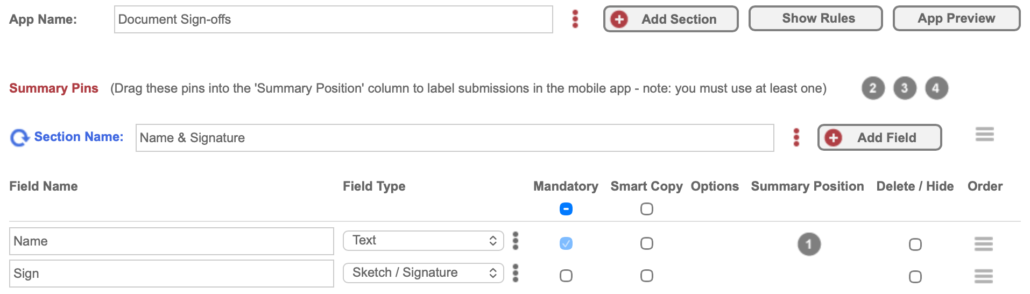
How it works: A Data Collector app is used to capture the signature. For example, a Data Collector called “Document Sign-offs” with a Name field and a Signature field. When a user views a document on AppCan Mobile, a signature icon is shown. Tapping it presents the Data Collector fields for the user to complete and sign.
Example Sign-off Data Collector:
Configuring document signing:
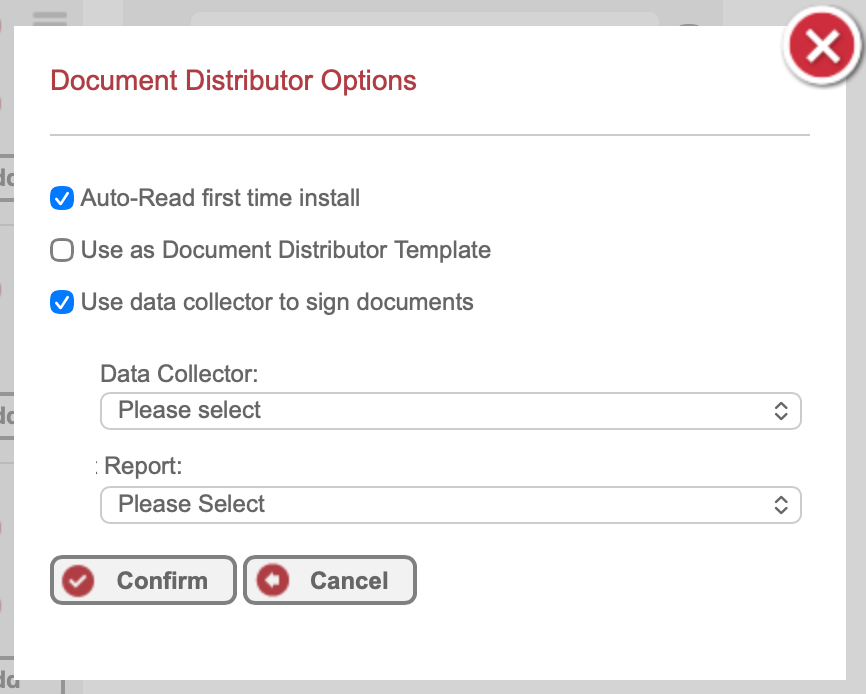
- In the Document Distributor builder, click the three-dot icon next to the App Name to open Options.
- Select the Data Collector app to use for sign-offs.
- Select the associated Report — a report must be built for the Data Collector for this feature to work.
- Publish the Document Distributor.
Data Collector
Fourth Summary Pin
A fourth Summary Pin is now available. Summary Pins allow you to highlight key field values in the submission list, giving users a quick reference. You can now pin up to four summary pins per app.
Select All for Mandatory and Smart Copy
Within a section, you can now apply Select All for both Mandatory and Smart Copy field settings, rather than ticking each field individually. This saves time when configuring sections with many fields.