
Why can’t I access AppCan from where I am?
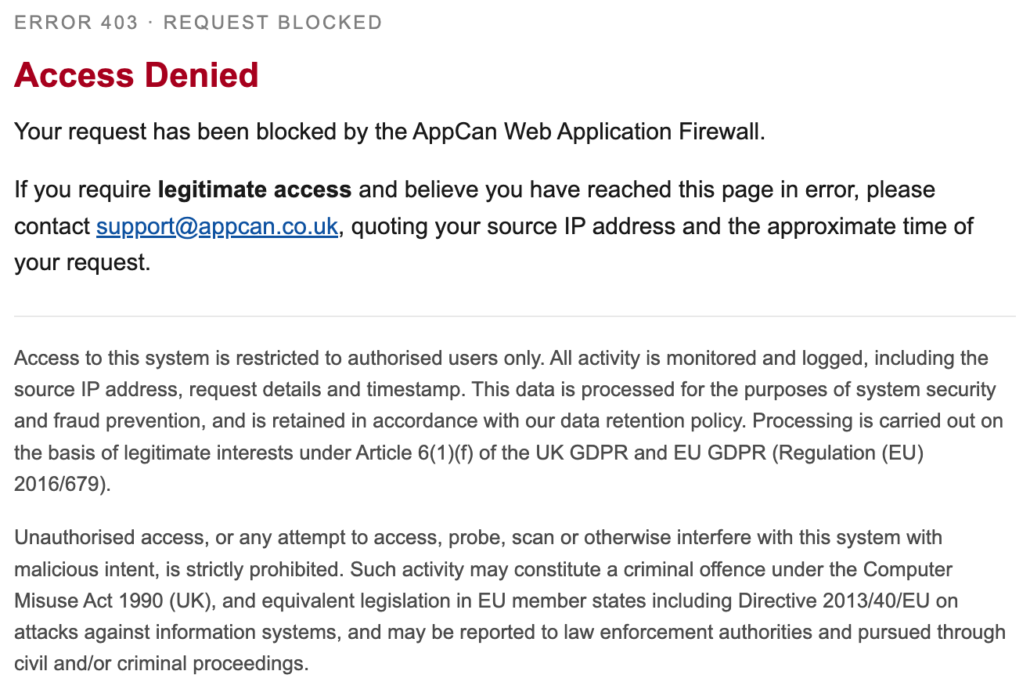
If you are accessing your AppCan Cloud portal and seeing an “access denied” message (as shown below) rather than a password error;
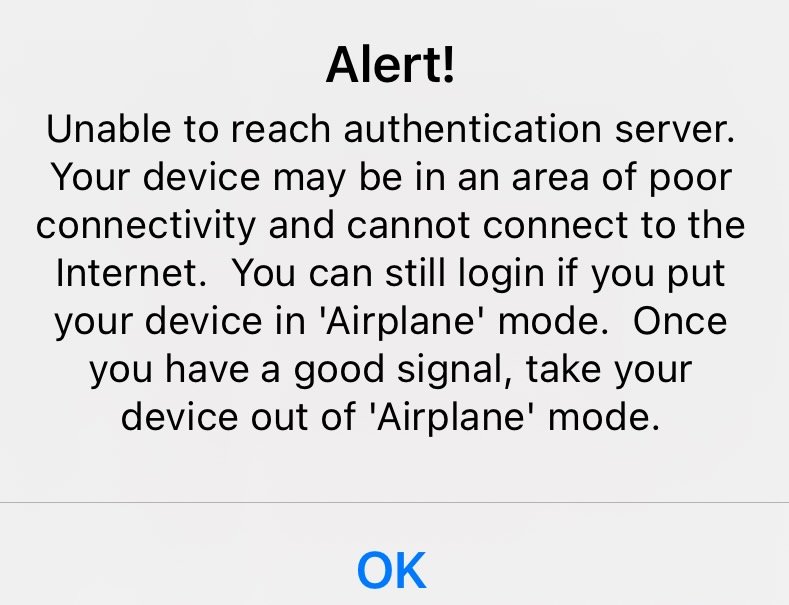
Or, If you are accessing the AppCan Mobile app and seeing an “authentication sever” alert (as shown below), your location may be the cause. This page explains why and what to do next.
Access is restricted by location
AppCan is only reachable from countries where our customers normally operate.
This is deliberate. A large proportion of the automated and hostile traffic aimed at any internet-facing system comes from places where our customers aren’t, and refusing it outright keeps that noise away from the system entirely. AppCan holds ISO 27001 and Cyber Essentials Plus accreditation, and this filtering is one of several layers that support it. Occasionally it catches out a genuine user who is travelling or working abroad.
How to tell this is what’s happening
Signs it’s a location issue rather than a credentials issue:
- The login page times out or won’t load at all
- You see “Access Denied”
- It works from your usual office or home connection but not from where you are now
If you’re seeing a message about an incorrect username or password, that’s something else, use the password reset link.
Using a VPN to connect to AppCan
If you see the access denied message, we recommend using a VPN (Virtual Private Network). This routes your connection through a server elsewhere in the world. Connect through one in the United Kingdom and AppCan sees a UK connection.
Please choose a reputable, paid service. Free VPN applications, particularly the ones that dominate app store search results, commonly fund themselves by collecting and selling their users’ browsing data, and some have been found routing other people’s traffic through their users’ connections. That is not something you want sitting between you and a work system. If you’re unsure what to pick, ask your IT team, or ask us and we’ll talk it through.
- Install a VPN application on your laptop, tablet or phone.
- Choose a server located in the United Kingdom. This matters, connecting to a server in another country won’t help.
- Connect, confirm it shows as online, then open AppCan as normal.
You only need it switched on while you’re using AppCan.
You’ll still log in to AppCan with your normal username and password. The VPN only changes where your connection appears to come from; it doesn’t grant you any access you didn’t already have.
Travelling soon?
Get in touch before you go rather than after you’ve arrived. It’s far easier to arrange while you still have a working connection, and we can advise which option suits your situation.
Still stuck?
Contact AppCan support. It helps if you can tell us:
- Which country you’re connecting from
- You AppCan username
- Whether you’re on company wifi, home broadband, or a mobile connection
- The exact error message, or a screenshot
- Whether you’ve tried a VPN, and if so which country’s server